Related Links
Integrate S3 Explorer with IDrive® e2
S3 Explorer is a graphical S3 client that offers a familiar file manager-style interface for browsing and managing objects across Amazon S3 and S3-compatible storage services. It supports uploads, downloads, bucket management, permissions handling, and object-level operations through standard S3 APIs. Integrating S3 Explorer with IDrive® e2 provides a capable, scalable cloud object storage solution that supports secure and efficient data management workflows.
Prerequisites:
Before you begin, ensure the following:
- An active IDrive® e2 account. Sign up here if you do not have one.
- A bucket in IDrive® e2. Learn how to create a bucket
- Valid Access Key ID and Secret Access Key. Learn how to create an access key.
- The latest version of the S3 Explorer application installed on your machine.
Configure S3 Explorer with IDrive ® e2
The following instructions and config guidelines can help you configure S3 Explorer with IDrive® e2.
- Launch the S3 Explorer application.
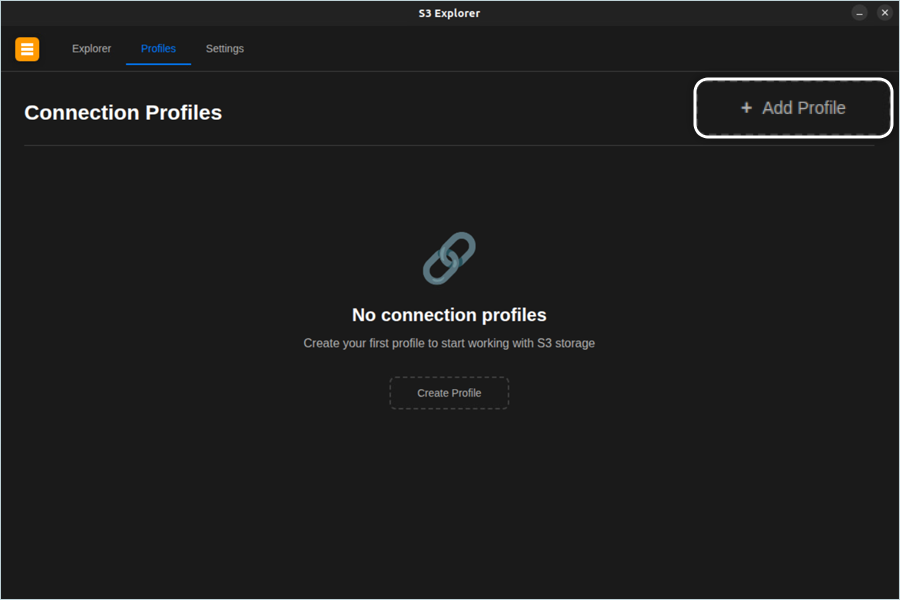
- Click the Profiles tab.
- Click + Add Profile to add your e2 account as a profile.
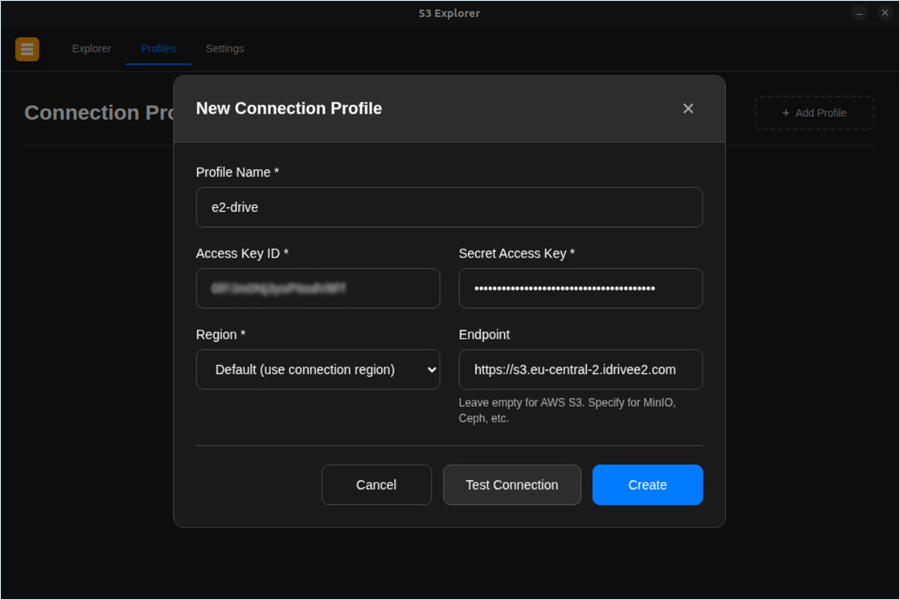
- In the New Connection Profile window, enter the following details.
- Enter a Profile Name.
- Enter your IDrive® e2 Access Key as the Access Key ID.
- Enter your IDrive® e2 Secret Key as the Secret Access Key.
- Select Default (use connection region) as the Region.
- Enter your IDrive® e2 S3 endpoint as the Endpoint.
- Click Test Connection. Click Create once the connection is verified
successfully.
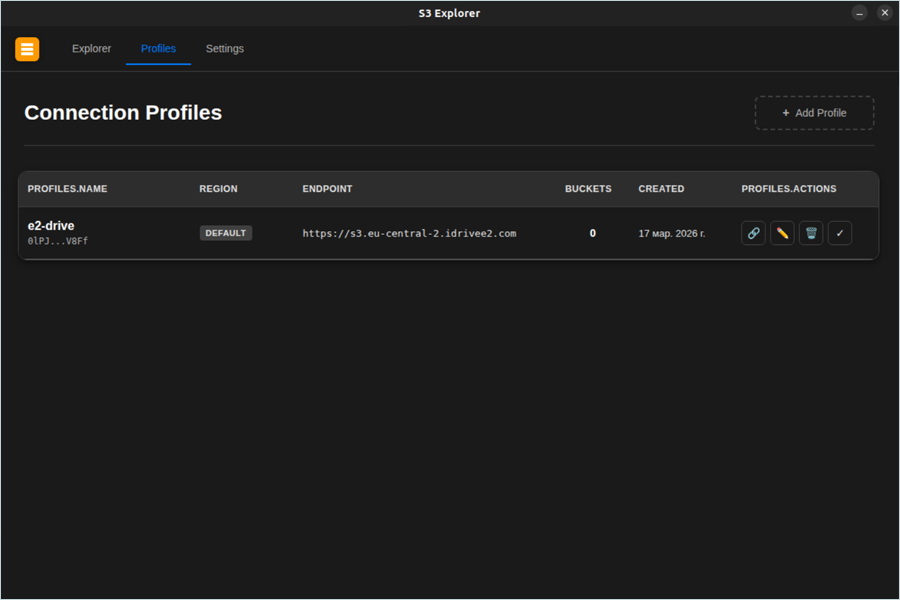
The created profile gets listed under the Profiles tab as a connection profile.
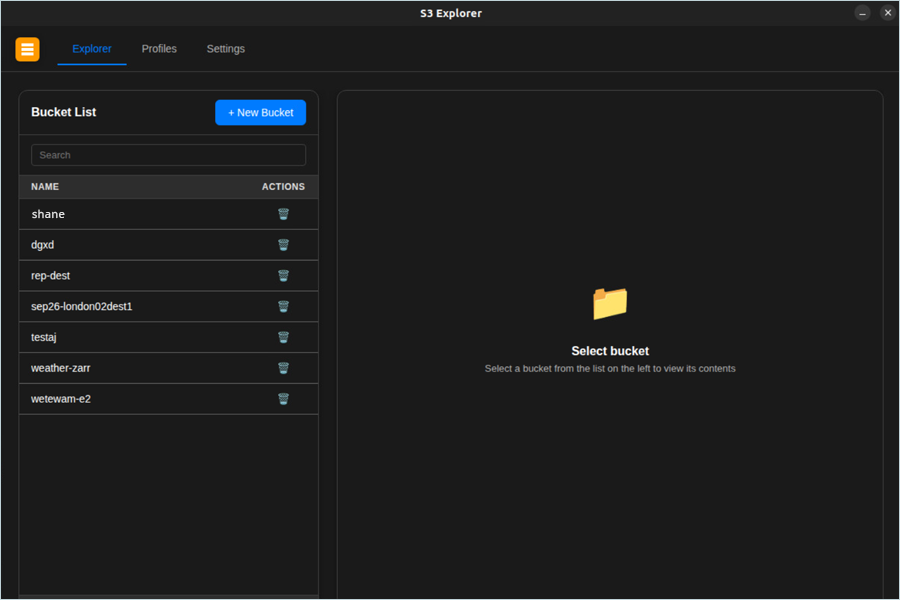
- Click the Explorer tab to access your IDrive® e2 buckets.