Related Links
How do I use Synology with IDrive® e2?
Backup your Synology NAS devices with IDrive® e2 via Hyper Backup. The Synology version DSM 7.1 has been assessed and validated with Hyper Backup.
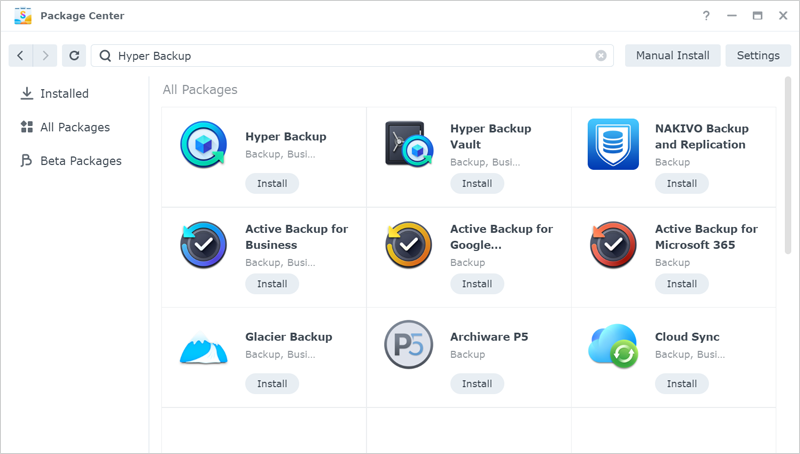
- Open Package Center, search for Hyper Backup, and install.
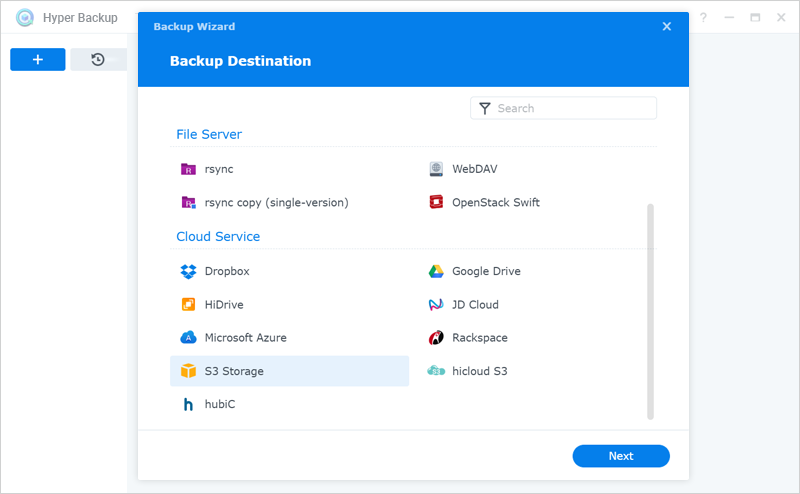
- To backup the Synology data to cloud, select the S3 Storage as backup destination.
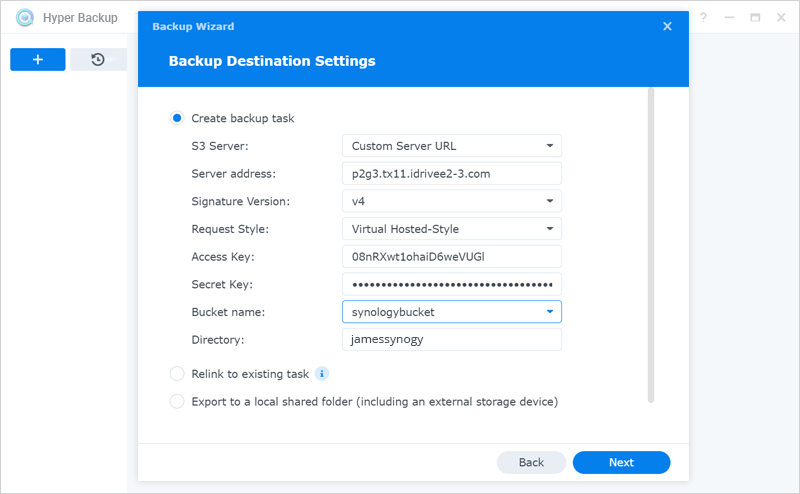
- Select Custom Server URL from S3 Server dropdown and input the IDrive® e2 access keys and end-points and click Next.
- Select the source folder you wish to backup.
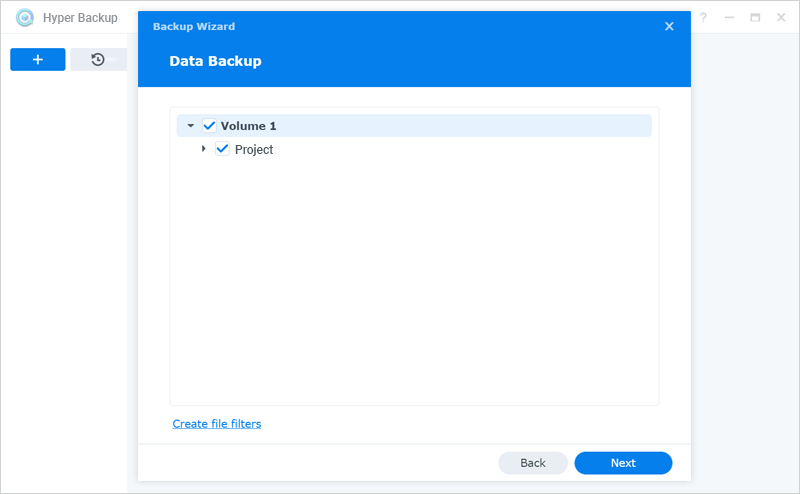
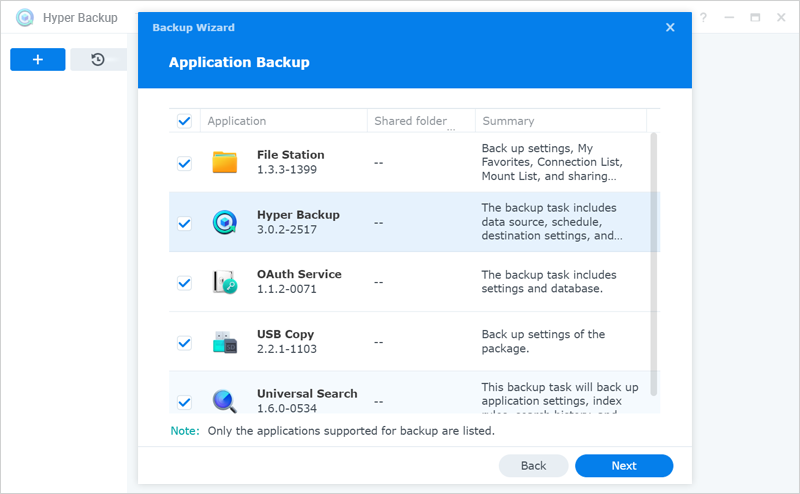
- Select any application if you wish to backup and click Next.
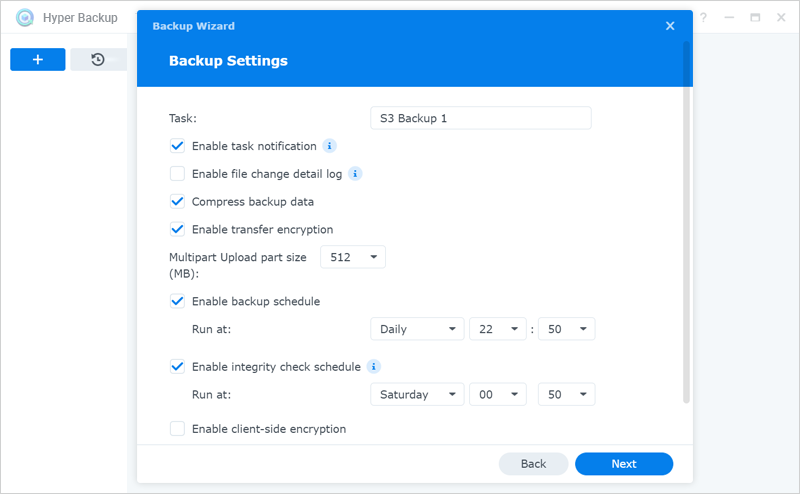
- Schedule a backup, enable transfer encryption, and modify other backup settings based on your requirements.
Note: Enable Transfer Encryption should be selected.
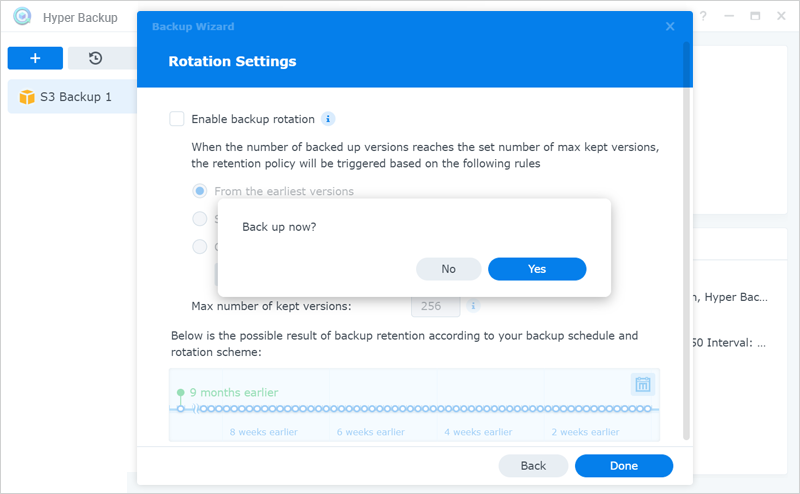
- Choose any applicable version else click Done and provide confirmation in the Back up now popup.
Note: Data restoration is handled by your specific backup solution provider and is affected by multiple variables that are unique to your environment. For application-related enquiries/support, it is strongly recommended you seek guidance from the technical team of your backup solution provider.