Related Links
Upload Files to IDrive® e2 with Dropshare
With Dropshare, you can upload files to IDrive® e2 Hot Cloud Storage and share it. Learn more about using Dropshare.
Prerequisites:
Before uploading files using Dropshare, you require:
- An active IDrive® e2 account. Sign up here if you do not have one.
- A bucket in IDrive® e2. See how to create a bucket.
- Valid Access Key ID and Secret Access Key. Learn how to create an access key.
- Dropshare application installed on your system. Download Dropshare.
Upload Files to IDrive® e2
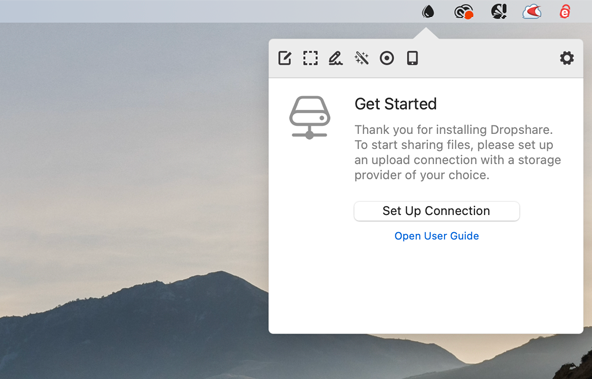
- Click the Dropshare icon on the menu bar and click 'Set Up Connection' in the 'Get Started' popup.
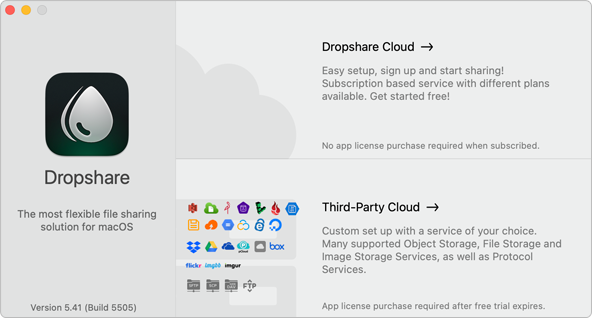
- Click 'Third-Party Cloud'.
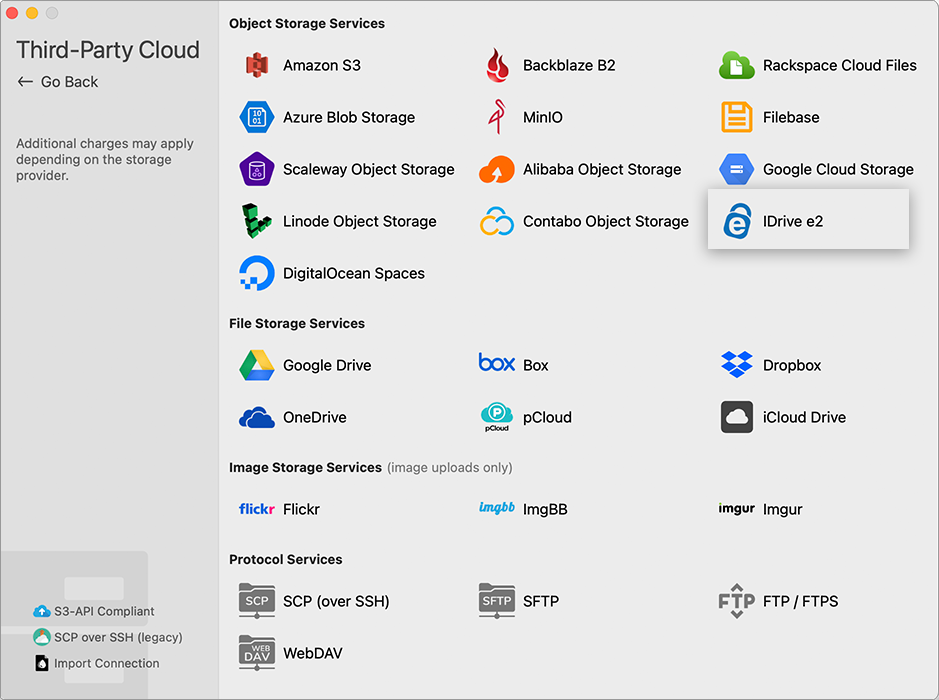
- Select 'IDrive® e2' under 'Object Storage Services'.
- Enter the following information:
- Bucket name - Enter the IDrive® e2 bucket name
- Access Key ID - Enter the IDrive® e2 Access Key ID
- Secret Key - Enter the IDrive® e2 Secret Access Key
- Endpoint URL - Enter the IDrive® e2 region endpoint URL
- Public domain or Custom Domain - Provide the public URL or custom domain used for the IDrive® e2 bucket.
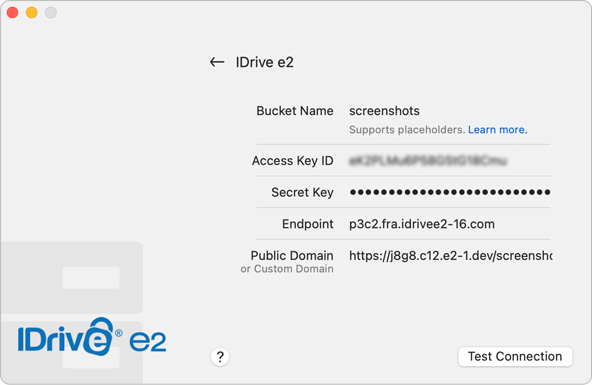
- Click 'Test connection' to validate the connection. The connection will be saved on successful validation.
- Click the Dropshare icon on the menu bar. You can capture screenshot by clicking
 .
.
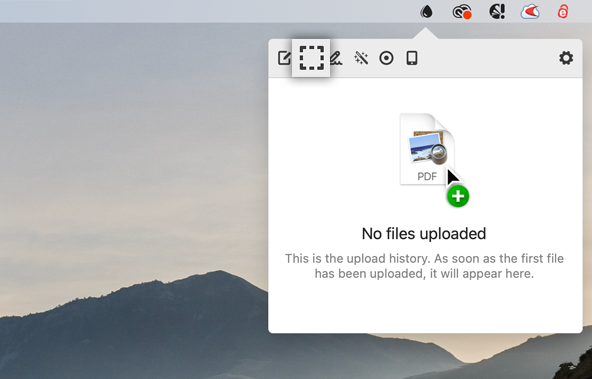
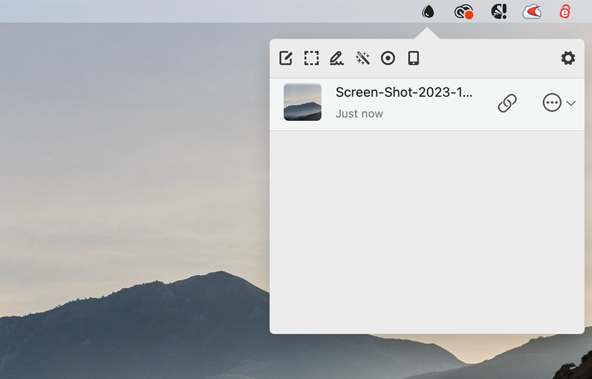
- You can now share the screenshot with anyone.
Note: IDrive® e2 does not allow creating public buckets. Only public buckets created before 21st July, 2026 are available.